
 By admin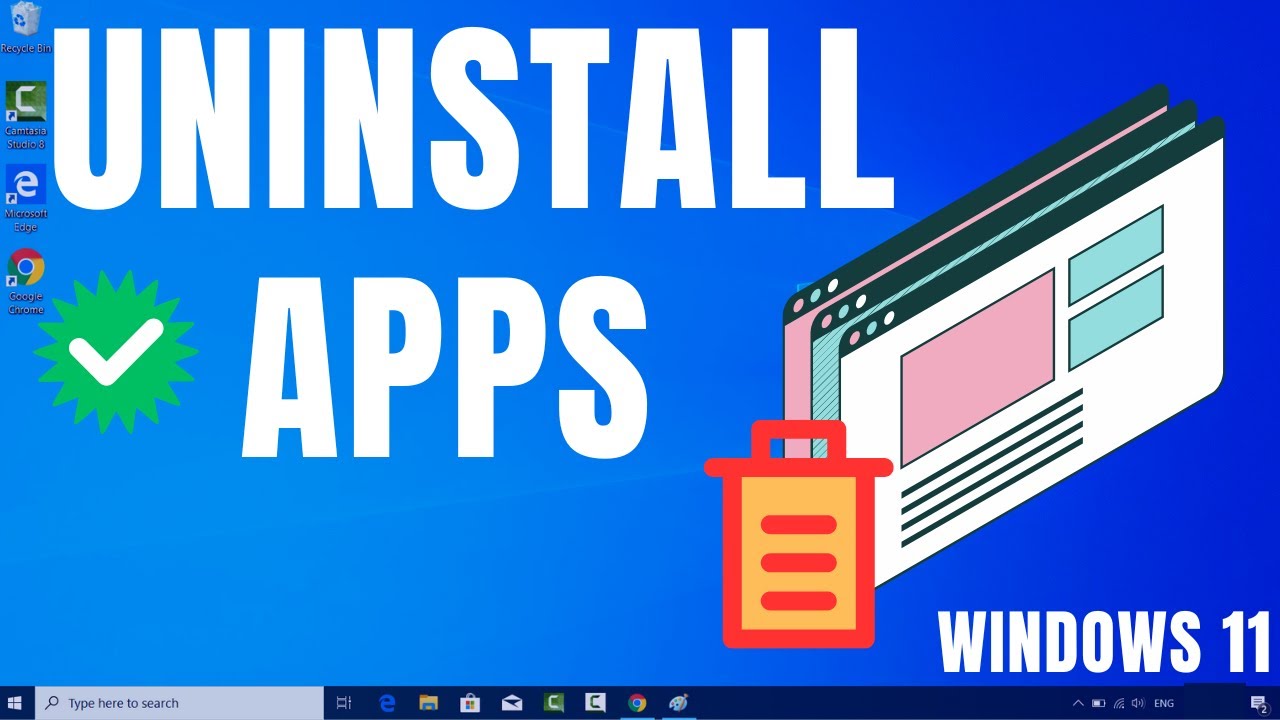
A Comprehensive Guide to Perfect Software Uninstallation on Windows: Reclaiming Performance, Stability, and Control
Introduction: The Hidden Cost of “Successful” Uninstalls
In today’s digital era, Windows computers are constantly evolving ecosystems. Users install productivity tools, creative suites, security software, development environments, drivers, utilities, and countless trial applications in pursuit of efficiency, innovation, and experimentation. Installing software has never been easier—yet uninstalling it completely remains one of the most misunderstood and underestimated challenges in Windows system management.
At first glance, uninstalling a program appears simple. A few clicks in Settings > Apps or Control Panel > Programs and Features, followed by a confirmation dialog, and Windows declares the process “successful.” For most users, this message signals closure. In reality, it often marks the beginning of a long-term problem rather than its resolution.
Behind the scenes, most Windows uninstallations are incomplete by design. They leave behind extensive digital residue: abandoned registry keys, orphaned configuration files, unused folders, inactive services, and even kernel-level drivers. These remnants silently accumulate over time, degrading performance, destabilizing the operating system, complicating updates, and creating conflicts that are notoriously difficult to diagnose.
This article provides a deep technical and practical exploration of why traditional Windows uninstallation fails, the real-world consequences of software residue, and how a professional snapshot-based uninstallation strategy can fully restore system integrity. Whether you are an IT professional, power user, developer, or everyday Windows user seeking long-term stability, this guide will equip you with the knowledge and tools needed to regain full control over your system.
Part One: Why Standard Windows Uninstallation Is Fundamentally Incomplete
1. The Decentralized Architecture of Windows Software Installation
Unlike operating systems that rely on centralized package managers with strict dependency tracking, Windows adopts a highly permissive and decentralized installation model. Software installers are allowed to:
- Write entries across thousands of registry branches
- Place files in multiple directories (
Program Files,ProgramData,AppData,System32,Temp) - Install services, scheduled tasks, shell extensions, and startup entries
- Register COM objects and shared libraries
- Install low-level drivers that interact directly with the kernel
The responsibility for reversing all these changes lies entirely with the vendor-provided uninstaller—typically a single executable created during development. Windows itself does not enforce a rollback mechanism, nor does it verify whether all system modifications have been removed.
As a result, uninstall quality depends entirely on developer discipline, time constraints, and priorities. In many cases, developers intentionally leave data behind “just in case” the user reinstalls the software later.
2. Why Developers Leave Data Behind (On Purpose)
Incomplete uninstallation is not always accidental. Common reasons include:
- User settings preservation for convenience during reinstallation
- License verification data to prevent abuse of trial software
- Shared components that might be used by other applications
- Poor documentation of installation behavior during development
- Legacy code accumulated over multiple software versions
While these decisions may benefit vendors, they directly harm long-term system health.
Part Two: Understanding Digital Residue and Its Risks
1. Registry Clutter and Registry Entropy
The Windows Registry is the backbone of system configuration. Over time, abandoned registry entries accumulate, creating what experts call registry entropy. These remnants include:
- Invalid file paths
- Broken COM object references
- Obsolete startup instructions
- Context menu extensions for removed programs
- File associations pointing to nonexistent executables
Although modern Windows versions are more resilient, a bloated registry still increases lookup times, complicates troubleshooting, and contributes to unpredictable system behavior.
2. Orphaned Files and Hidden Folders
Uninstalled applications often leave behind:
- Configuration files in
AppData\LocalandAppData\Roaming - Cache folders and log files
- Shared DLLs with outdated versions
- Empty but protected directories
These files consume disk space and may interfere with newer versions of the same software, causing crashes, failed launches, or corrupted profiles.
3. Dormant Drivers and Low-Level Components
One of the most dangerous forms of digital residue involves kernel-mode drivers. These drivers often remain loaded even after the parent application is removed.
Examples:
- Antivirus and firewall software installing network filter drivers
- Virtualization tools adding virtual network adapters
- Backup and imaging tools installing storage filter drivers
- Media software interfacing with optical drives
Leftover drivers can:
- Cause system crashes (BSODs)
- Slow down network and disk I/O
- Break hardware compatibility
- Interfere with newer security software
4. DRM, Licensing Traces, and Trial Software Artifacts
Trial applications often embed hidden license data deep within the system to prevent reinstallation abuse. Even after removal, these traces persist and may:
- Block legitimate reinstallation
- Prevent upgrades to full versions
- Trigger false license violations
This “digital tattooing” is especially common in professional software suites.
Part Three: The Long-Term Consequences of Software Residue
1. Gradual Performance Degradation
Over time, residual data forces Windows to:
- Scan unnecessary startup entries
- Parse bloated registry hives
- Load unused services and drivers
The result is slower boot times, reduced responsiveness, and increased background CPU usage.
2. System Instability and Application Conflicts
Many cryptic Windows errors—such as failed installations, runtime crashes, or missing DLL messages—can be traced directly to remnants of previous software versions.
3. Security Vulnerabilities
Abandoned libraries and drivers are rarely updated. If vulnerabilities are discovered later, these leftover components may remain exploitable even though the original software is no longer installed.
4. Failed Updates and Upgrades
Windows feature updates and major software upgrades frequently fail because installers detect incompatible registry entries or services from older installations.
Part Four: The Professional Solution – Snapshot-Based Uninstallation
1. What Is Snapshot-Based Uninstallation?
Snapshot-based uninstallation is a proactive system monitoring technique that records every system change made during software installation.
A professional tool such as Reg Organizer uses this method to ensure 100% traceability.
2. How Snapshot Technology Works
- Pre-Installation Snapshot
A complete record of registry keys, files, folders, services, and drivers is captured. - Software Installation
The target application is installed normally. - Post-Installation Snapshot
The system state is captured again. - Differential Analysis
The tool identifies every single change introduced by the software. - Precision Uninstallation
During removal, all tracked changes are reversed—no guesswork, no leftovers.
3. Why Snapshot-Based Removal Is Superior
- Independent of vendor uninstallers
- Restores system to its exact previous state
- Eliminates hidden and undocumented changes
- Prevents cumulative system degradation
Part Five: Strategic Benefits for Professionals and Power Users
1. Safe Software Testing and Evaluation
Developers, reviewers, and IT specialists can test applications freely without risking permanent system contamination.
2. Effective Troubleshooting
When system instability appears, targeted removal of recently installed software often resolves conflicts instantly.
3. System Decommissioning and Migration
Before selling, repurposing, or transferring a system, snapshot-based cleanup ensures no sensitive data or licensed components remain.
4. Long-Term Performance Optimization
Regular use prevents software rot and keeps Windows operating at peak efficiency for years.
Part Six: Practical Implementation Guide
Using Reg Organizer for Clean Uninstallation
- Launch Reg Organizer
- Navigate to Application Uninstall mode
- Identify monitored applications with recorded snapshots
- Select the program and choose Uninstall
- Allow the tool to execute vendor removal followed by deep cleanup
For new users, even a trial version reveals the extent of hidden leftovers on an existing system.
Conclusion: From Passive Usage to Active System Stewardship
Modern Windows systems are powerful, but they demand responsibility. Accepting incomplete uninstallation as “normal” leads to technical debt, declining performance, and growing instability. The hidden accumulation of registry clutter, orphaned files, and dormant drivers silently undermines even the most advanced hardware.
By understanding the structural limitations of traditional Windows uninstallation and adopting a snapshot-based, professional approach, users can finally reclaim full control over their systems. Tools like Reg Organizer transform software management from a reactive chore into a proactive discipline—one that prioritizes performance, stability, and long-term reliability.
In an era where efficiency, security, and uptime matter more than ever, mastering the complete software lifecycle is not optional. It is the defining trait of a truly professional Windows user.
The Rise of Artificial Intelligence